
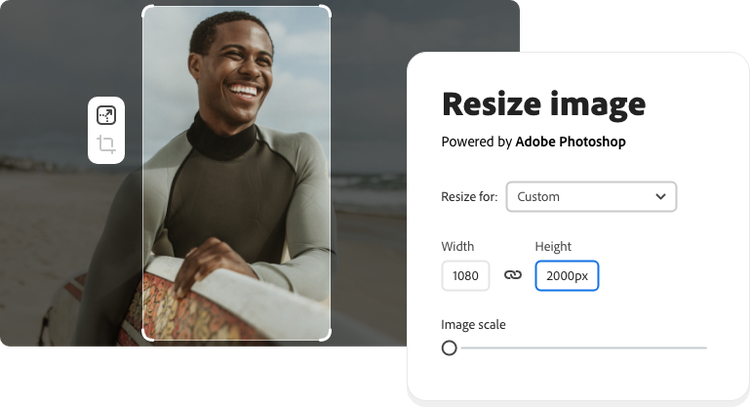
Images play a major role in how we share information online. Whether you upload photos to social media, build a website, or send pictures through email, image size can affect quality, loading speed, and how your content looks. Large image files can slow down websites, while incorrectly sized pictures may appear stretched or blurry. A photo resizer tool helps solve these problems by changing image dimensions to fit different needs while maintaining good visual quality.
Understanding how photo resizing works can help you manage images more effectively. This guide explains the basics of photo resizing, the technology behind it, and practical ways to prepare images for different digital platforms.
What Is a Photo Resizer?
A photo resizer is a digital tool that changes the width and height of an image. It allows users to make pictures smaller or larger according to specific requirements. People commonly use these tools to prepare images for websites, online forms, email attachments, and social media platforms.
Digital images contain tiny colored squares called pixels. These pixels form the complete picture you see on a screen. For example, a photo measuring 1920 × 1080 pixels contains 1920 pixels across its width and 1080 pixels along its height.
When you resize a photo, you change its pixel dimensions. Reducing these dimensions usually makes the image easier to store, share, and display. However, increasing the dimensions does not automatically reveal more detail.
A photo resizer can also help users maintain an image’s original proportions. This prevents faces, objects, and backgrounds from looking unnaturally stretched.
Key takeaway: A photo resizer changes image dimensions by adjusting pixel width and height. It helps prepare photos for different uses while preserving their natural appearance.
How Does a Photo Resizer Work?
A photo resizer works by processing an image’s pixel data and creating a new version with the requested dimensions. The software calculates how pixels should appear in the resized image. Depending on the resizing method, it may remove pixels, combine their values, or estimate new ones.
Although the process appears simple, several technical operations happen behind the scenes.
1. Reading the Original Image
The resizing process starts when you upload or open a picture. The tool reads its dimensions, format, and other relevant image information.
For example, an image measuring 4000 × 3000 pixels has 12 million pixels. If you change its dimensions to 2000 × 1500 pixels, the resulting image contains 3 million pixels.
The smaller version has only one-quarter of the original pixel count. This often reduces storage needs, although the final file size also depends on compression and format.
2. Adjusting Pixel Dimensions
Next, the software changes the image dimensions based on your settings.
If you enter a new width, many resizing tools automatically calculate the matching height. This feature keeps the picture’s aspect ratio intact.
For example, resizing a 1600 × 900 image to 800 pixels wide produces an 800 × 450 image when you preserve its proportions.
3. Applying Image Interpolation
Image interpolation is the method software uses to estimate pixel values while resizing.
Different interpolation methods produce different results:
- Nearest neighbor: Selects the closest existing pixel. It works well for pixel art but can make photographs look blocky.
- Bilinear interpolation: Uses nearby pixels to create smoother transitions.
- Bicubic interpolation: Considers more surrounding pixels and often produces smooth photographic results.
- Lanczos resampling: Uses a mathematical filter that can preserve fine detail during image reduction.
A good resizing method helps reduce unwanted blur, jagged edges, and other visual problems.
Key takeaway: Photo resizing involves reading an image, changing its pixel dimensions, and calculating new pixel values. The interpolation method affects how sharp or smooth the final picture looks.
What Is the Difference Between Image Resizing and Image Compression?
Many people confuse image resizing with compression because both can reduce image file size. However, they work differently and serve different purposes.
Image resizing changes the pixel width or height of a picture. For example, reducing a 3000 × 2000 image to 1500 × 1000 changes its dimensions and reduces its pixel count by 75%.
Image compression, on the other hand, changes how the image data is stored. It aims to reduce the amount of storage space a file needs, sometimes without changing its dimensions.
Compression comes in two main forms:
- Lossy compression: Removes some image information to create a smaller file. JPEG commonly uses this approach.
- Lossless compression: Reduces storage requirements without discarding the original pixel information represented by the file. PNG supports lossless compression.
You can also combine resizing and compression. For example, a website owner might resize a large photograph to its required display dimensions and then save an optimized WebP version.
This approach can reduce unnecessary data while keeping the image visually suitable for its intended purpose.
Key takeaway: Resizing changes image dimensions, while compression changes how image information is stored. Combining them often provides better results for website performance.
Why Should You Use a Photo Resizer Tool?
Using a photo resizer tool can improve how images perform across websites, apps, and digital platforms. Correct dimensions help images fit their intended spaces and can reduce unnecessary file downloads.
Improve Website Loading Speed
Large images can increase the amount of data visitors must download. This becomes especially noticeable on mobile devices or slower internet connections.
A website that displays a photo at 800 pixels wide usually does not need to send every visitor a 4000-pixel-wide version.
Google’s web.dev image optimization guidance explains how image dimensions, formats, and responsive image techniques can improve web performance.
However, image resizing alone does not guarantee faster pages. File format, compression, caching, and delivery also matter.
Prepare Images for Social Media
Social media platforms display images in different layouts. Profile pictures, story graphics, cover photos, and feed posts may each require different proportions.
Resizing helps you prepare images for their intended display areas. You may also need to crop the picture when a platform requires a different aspect ratio.
Checking each platform’s latest image specifications helps avoid unwanted cropping and unclear visuals.
Make Images Easier to Share
High-resolution photos can create large email attachments and use more storage space.
Reducing image dimensions can make everyday sharing easier. Smaller files often upload faster and are more convenient to send through messaging services.
Maintain a Consistent Website Layout
Images with inconsistent dimensions can make a website look uneven. This is especially common in blog galleries, product listings, and article thumbnails.
Using consistent image sizes helps create a cleaner layout. It also makes it easier to plan image containers and responsive page designs.
Key takeaway: Photo resizing supports faster image delivery, easier sharing, consistent layouts, and better preparation for different digital platforms.
How to Resize a Photo Without Losing Quality
Every resizing operation involves choices that can affect image quality. Reducing an image’s dimensions removes pixel information, while enlarging an image requires software to estimate additional pixels.
However, you can minimize visible quality loss by following a few simple steps.
Step 1: Choose a Suitable Image
Start with a clear, high-resolution original whenever possible. A sharp source image gives the resizing software more detail to work with.
Avoid repeatedly editing and saving already compressed photographs because the process may introduce additional quality loss.
Step 2: Select the Required Dimensions
Determine where you plan to use the picture before changing its size.
For example, a blog image may only need to be 1200 pixels wide, while a small thumbnail might need dimensions of 300 × 200 pixels.
Choose dimensions based on the actual display size and the needs of high-density screens.
Step 3: Maintain the Aspect Ratio
Aspect ratio describes the proportional relationship between an image’s width and height.
A 16:9 image remains proportional when resized from 1920 × 1080 to 1280 × 720.
If you change the width without adjusting the height correctly, the image may appear distorted.
Enable the option labeled “Maintain aspect ratio,” “Lock proportions,” or something similar when using a resizing tool.
Key takeaway: Maintaining the original aspect ratio prevents stretching and preserves the natural proportions of people, objects, and backgrounds.
Step 4: Select the Right Image Format
Different file formats work better for different kinds of images.
| Format | Best use | Main advantage |
| JPEG | Photos and everyday images | Broad compatibility and adjustable compression |
| PNG | Graphics and transparent images | Lossless storage and transparency |
| WebP | Website photos and graphics | Supports efficient lossy and lossless compression |
| AVIF | Web images where supported | Efficient compression and modern image features |
The best format depends on the image content, browser support, and how you plan to use the file.
Step 5: Preview the Final Image
After resizing, examine the picture at its intended display size.
Check important details such as faces, text, product edges, and background patterns. If the image looks blurry, try a different interpolation method or use a larger output size.
Keep the original photograph so you can create new versions later.
Key takeaway: To resize photos with minimal quality loss, use a clear source image, preserve proportions, choose suitable dimensions, and inspect the result before publishing.
What Are the Most Common Photo Resizing Mistakes?
Even a simple resizing task can produce poor results when you overlook basic image settings.
One common mistake is enlarging a small photo too much. A 400 × 300 image resized to 2000 × 1500 does not gain genuine original detail. Standard interpolation estimates extra pixels, which can make the result look soft.
Another mistake is ignoring aspect ratio. Forcing a square photo into a wide rectangle without cropping will stretch the subject. Instead, crop the image to the desired shape or add padding around it.
Choosing the wrong format can also cause problems. Saving a photograph as a large PNG may create an unnecessarily heavy file. Similarly, saving a graphic containing small text as a highly compressed JPEG can introduce visible artifacts.
Finally, some users focus only on file size and apply too much compression. This can cause blurry textures, uneven color transitions, and visible blocks.
The better approach is to balance dimensions, compression, and visual quality rather than trying to make every image as small as possible.
Key takeaway: Avoid excessive enlargement, distorted proportions, unsuitable formats, and aggressive compression. Always judge image quality at its actual display size.
How Does Photo Resizing Help Website SEO?
Image resizing contributes to technical SEO by making visual content more efficient to deliver. Search engines consider several aspects of page experience, and images can influence how quickly page content appears.
For example, uploading a full-resolution camera photo when a much smaller version would work can increase transfer size without offering a clear benefit to readers.
Google’s image SEO best practices recommend using high-quality images alongside descriptive text, suitable filenames, and useful alternative text.
Website owners can improve image handling by combining several methods:
- Use appropriately sized images for the page layout.
- Add responsive image versions for different screen sizes.
- Write descriptive alt text that explains meaningful image content.
- Use efficient image formats supported by the target browsers.
- Set image width and height attributes or reserve the correct display space to reduce layout shifts.
Resizing also supports the user experience. Visitors can browse pages more comfortably when images appear clearly and load without excessive delay.
Still, smaller image dimensions do not directly guarantee higher search rankings. They form one part of a broader website performance and content strategy.
Key takeaway: Proper image dimensions can support website speed and usability. For better SEO, combine resizing with descriptive alt text, responsive images, and sound technical practices.
Frequently Asked Questions About Photo Resizing
Can I resize a photo without losing quality?
You can resize a photo while keeping visual quality high, especially when making it smaller. However, reducing dimensions removes pixels, and extreme enlargement can create blur.
Quick answer: Use a high-quality original and suitable resizing settings to minimize visible quality loss.
Does resizing a photo reduce its file size?
Usually, reducing pixel dimensions lowers file size because the new image contains fewer pixels. However, compression settings, metadata, and file format also affect the result.
Quick answer: Smaller dimensions often mean smaller files, but the final size depends on the saving method.
What is the best image size for a website?
There is no single ideal size for every website. The correct dimensions depend on the image container, screen resolution, and page design. Responsive images can serve different sizes to different devices.
Quick answer: Choose image dimensions that match the website’s display needs rather than uploading unnecessarily large files.
Can I resize photos on a smartphone?
Yes. Many smartphones offer basic image editing features, and mobile browsers can access online resizing services. Some apps also allow users to enter exact pixel dimensions.
Quick answer: You can resize smartphone photos using compatible editing apps or online tools.
Is cropping the same as resizing?
No. Cropping removes parts of the image to change its composition or shape. Resizing changes the image’s dimensions while normally keeping the full picture.
Quick answer: Cropping changes what appears in the image, while resizing changes how large the image is.
Conclusion
Photo resizing is an essential part of preparing images for modern digital use. It helps users adjust picture dimensions, manage file sizes, and create images that fit websites, social media, and other online platforms.
Understanding pixels, aspect ratios, interpolation, and file formats makes it easier to choose suitable settings. Instead of reducing image size without a plan, consider where the picture will appear and what level of detail readers need.
A reliable photo resizer tool can simplify this process, but the best results still depend on thoughtful settings and a good original image. By combining proper dimensions with efficient compression and clear visual content, you can build a more consistent and user-friendly experience.
Final takeaway: Photo resizing helps prepare images for efficient online use. Choose the right dimensions, preserve proportions, optimize file formats, and check visual quality to improve usability, sharing, and website performance.